Move the pointer.
Stay in control.
Find your way back.
A quick reference for the integrated Moonlight client, desktop mouse control, PS-button behavior and sessions. For installation or log collection, use the setup guide or alpha test guide.
Local shortcuts for your stream.
The integrated Moonlight client uses local shortcuts to keep you in control of the stream.
| Start + L + R | Open the stream menu. Choose Resume stream to continue or End session to leave the desktop stream. |
|---|---|
| L + R + Circle | Leave the integrated client and return to XMB. |
| Start + Left | Open the on-screen keyboard. |
| Start + Right | Cycle host displays when multiple monitors are configured. |
Use the desktop like a trackpad.
For desktop mouse control, select Trackpad in Input settings.
Left-click.
Right-click.
Scroll.
Save your PC work before choosing End host application. That option requests that the host application close; use End session when you simply want to finish streaming.
The PS button behaves differently here.
While inside lumaXMB, including its integrated desktop client, normal PS-button access to LiveArea is intentionally restricted. An unresponsive PS button here does not necessarily mean the Vita has frozen.
Use the shortcuts above to leave streaming, then use lumaXMB’s LiveArea action when you want to return to the system interface.
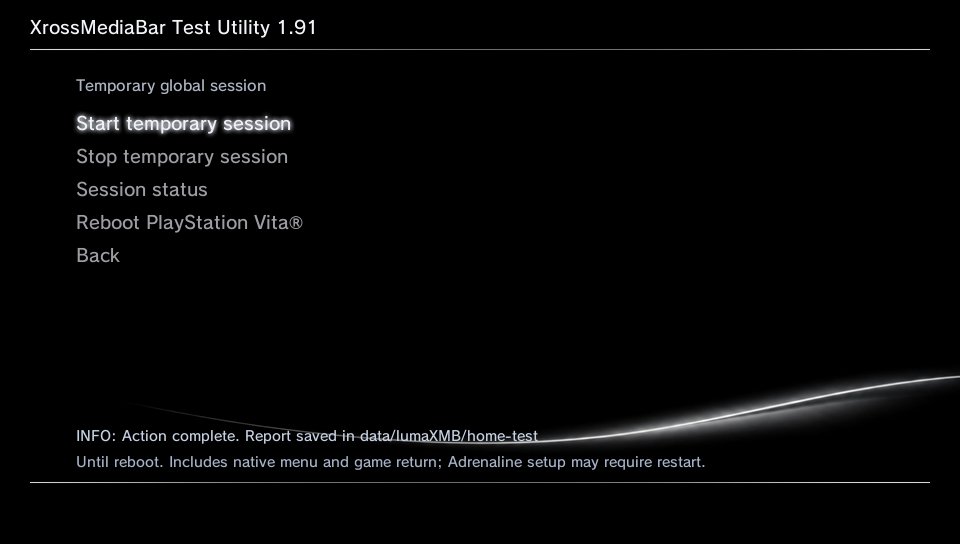
With a temporary session active, supported games launched through lumaXMB use the native PS menu with Return to XMB and Return to LiveArea options.
These return features remain experimental. Another plugin that changes PS-button or quick-menu behavior may interfere. Include your session mode and relevant plugins when reporting a problem.
Choose how long integration stays active.
| Temporary | Lasts until stopped or the Vita restarts. |
|---|---|
| Permanent | Remains configured across restarts until disabled or removed. |
- Start with a temporary session. Follow Test Utility’s restart prompts.
- Switching from permanent to temporary? Disable the permanent session and restart before starting a temporary session.
- Keep autoboot disabled during alpha testing. Session support and autoboot are separate.