Install & note your build.
Follow the three-step setup guide. Note your lumaXMB and Test Utility versions, Vita model, firmware, storage and enabled plugins. Keep the Companion completely optional.

This is a test app. A short, repeatable report with the right logs helps turn feedback into quick improvements. Start with a few everyday tasks, then report one problem at a time.
Follow the three-step setup guide. Note your lumaXMB and Test Utility versions, Vita model, firmware, storage and enabled plugins. Keep the Companion completely optional.
We recommend a known-stable per-app profile in PSVshell or PSVshellPlus. Record CPU, GPU, bus and Xbar clocks. For performance bugs, compare with stock clocks when practical.
Disable Test Utility autoboot and other autoboot/autolaunch plugins, then reboot before testing. Launch manually. Permanent sessions and autoboot are unavailable in this alpha; temporary sessions remain available.
For network tests: we recommend Wi-Fi Turbo on supported firmware (3.60, 3.65 or 3.68). Firmware 3.65/3.68 requires v0.2.0 or later. Follow its installation guide; use Settings → Network → Wi-Fi Turbo → Power profile → Max performance for transfer/streaming tests. Note the version and profile. Keep 40 MHz optional; use it only when your access point supports it and it improves your connection.
Streaming or PS-button behavior? Read the Moonlight/desktop shortcuts and PS-button & session notes before testing. LiveArea access through the PS button is intentionally restricted inside lumaXMB; that alone does not mean the Vita has frozen.
Try list, Coverflow and grid. Check artwork, favorites and library scanning. Open a Vita game and an app; note what launches and whether you can return.
Browse artists, albums and movies. Check covers, Now Playing, pause, skip and seek. Return to browsing while music plays, then resume the player.
Try a theme, layout and wave. Save your settings, close lumaXMB normally and reopen it. Check that your choices remain and controls still respond.
Copy a small file by USB or FTP and check the copy. With a session enabled, try game/app return. If Adrenaline is installed and configured, test opening it and launching a PSP title directly.
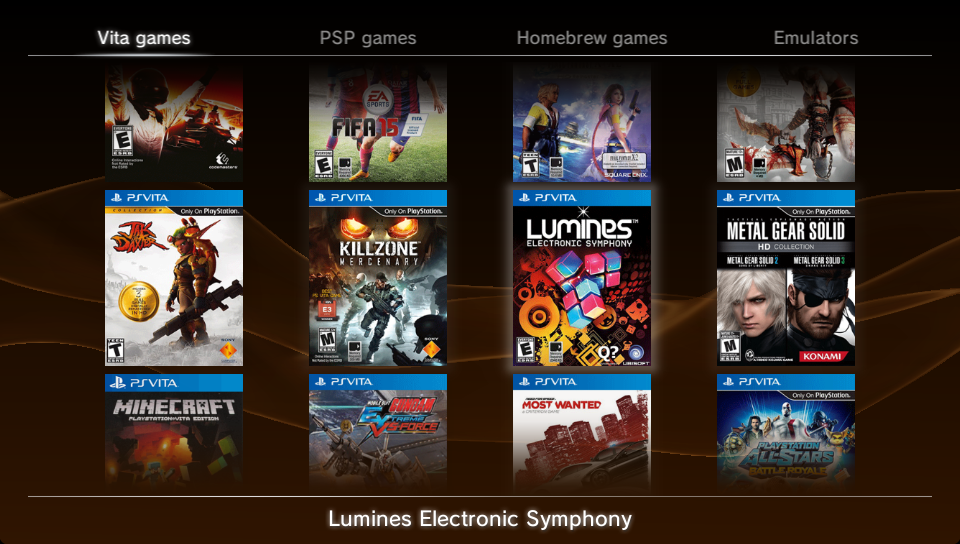
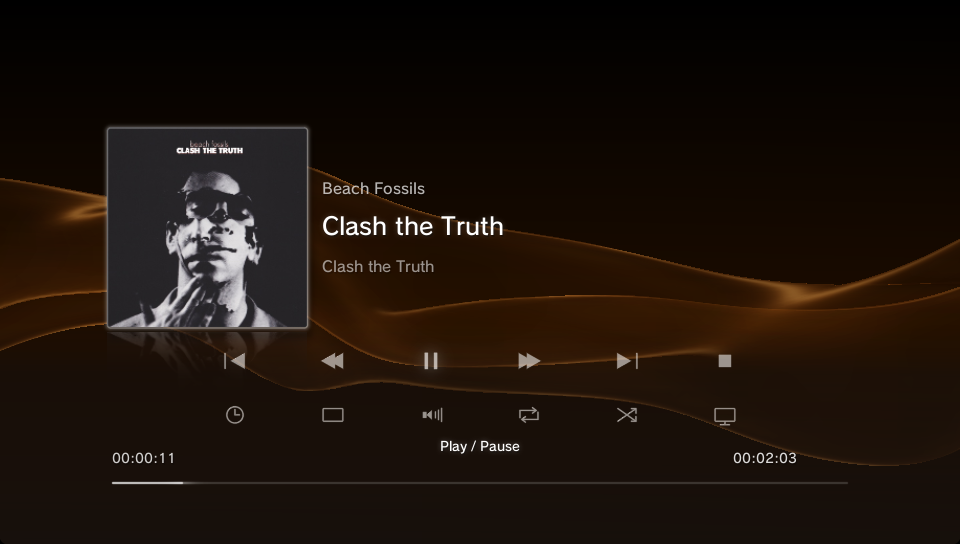
Start with Test Utility → Temporary global session → Start temporary session. It lasts until stopped or the Vita restarts. For a separate permanent-session test, stop the temporary session first, follow Test Utility’s install/enable and reboot prompts, and report which mode was active. Disable a permanent session and restart before switching back to temporary. Keep autoboot off in either mode.
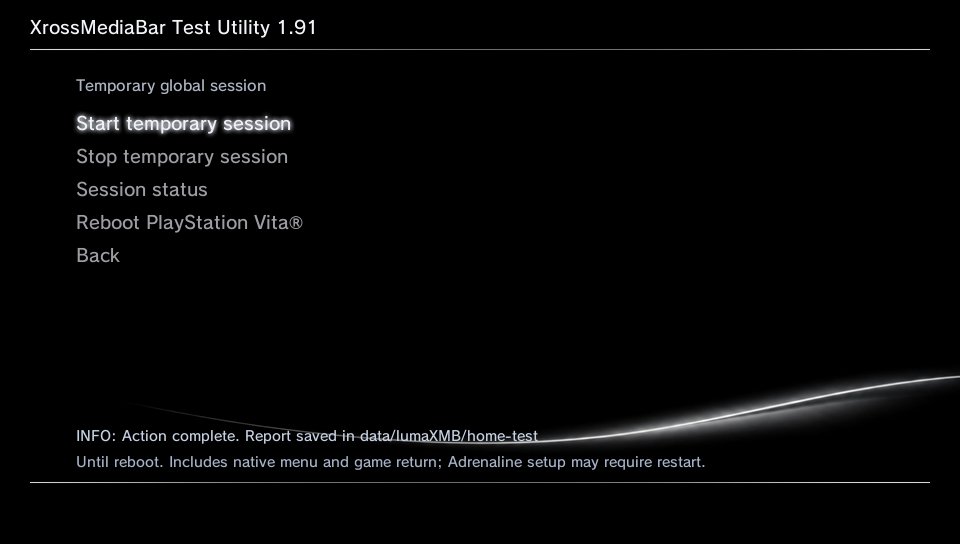
When something fails: note the last action, exact error, time and how often it happens. Capture a screenshot or short clip. Collect logs before reinstalling, clearing data or repeatedly relaunching; a clean exit can update diagnostics. If the app is stuck, recover normally and collect what is available.
lumaXMB-logs-<date>-usb.zip or …-ftp.zip under Documents/lumaXMB Companion/logs/. Open bundle folder opens its extracted contents; go up one folder to find the ZIP.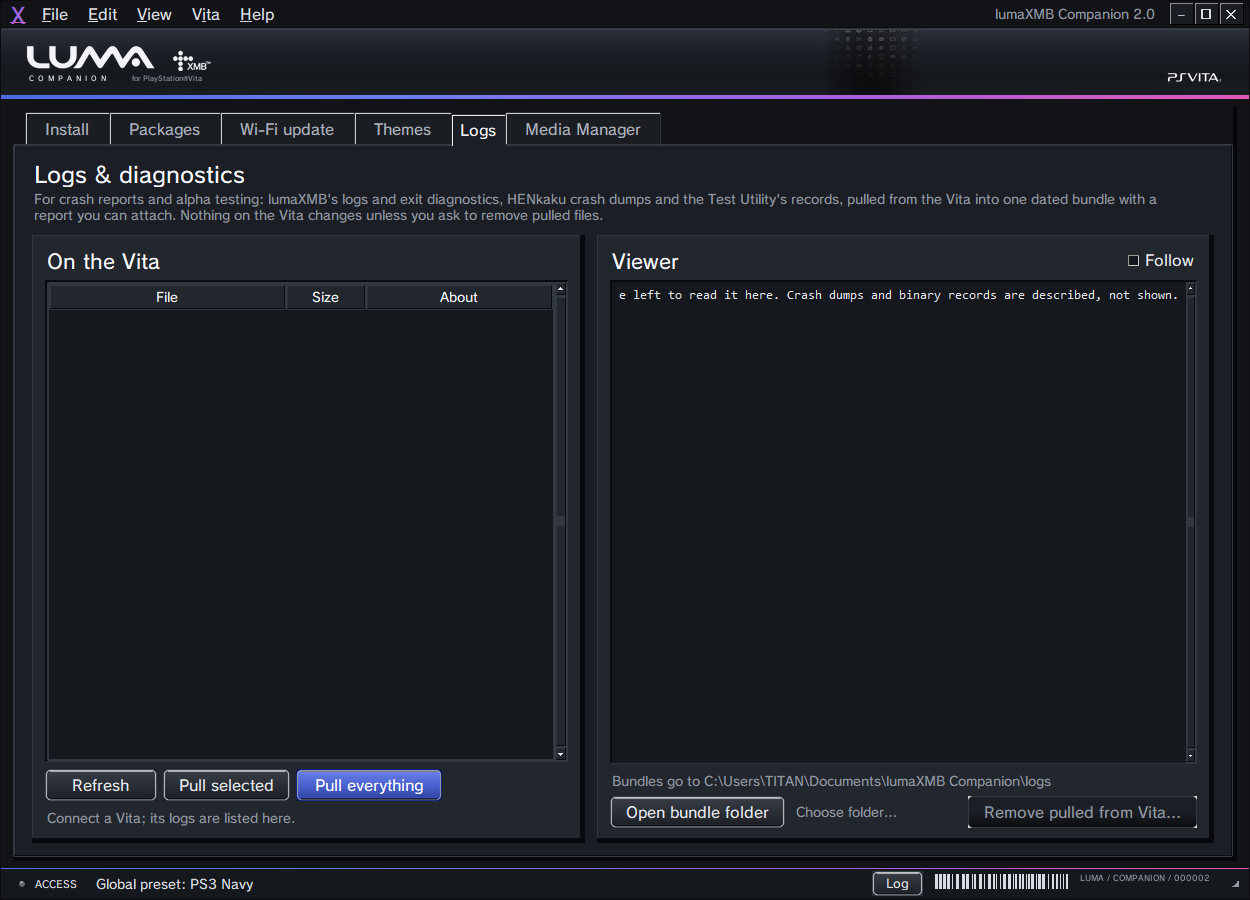
Pulling copies files; it does not clear them from the Vita. Leave Remove pulled from Vita… alone while investigating a bug. The Companion redacts the pairing key in update-host.txt; review your bundle before sharing.
ux0:; the PC shows its folders without the ux0: prefix.ux0:/data/lumaXMB/logs/ | Copy the whole folder: feature logs for FTP, USB, media, installation and more. |
|---|---|
ux0:/data/lumaXMB/diagnostics.txt | Exit diagnostics, written when lumaXMB closes normally. It may be missing or from an earlier run after a crash. |
ux0:/data/lumaXMB/home-test/ | Test Utility records and reports. Include its subfolders. |
ux0:/data/psp2core-*.psp2dmp | For crashes, include the dump matching the failure time, if generated. |
ux0:/data/lumaXMB/settings.txt | Optional: useful for theme, layout and library problems. Review it for personal paths before sharing. |
ur0:/data/lumaXMB/usb-handoff.log | For USB/session handoff problems, include it if present. Access ur0: through VitaShell FTP; it is not included in the Companion bundle. |
Keep credentials out: do not ZIP your whole lumaXMB data folder. Omit update-host.txt from manual bundles—it can contain a pairing key. Review logs and dumps for account details or other private information before posting.
Search existing GitHub issues first. Add to a matching report, or create a new issue for a new problem. In Discord, post in the existing alpha testing channel. Include the steps below plus the log ZIP and a screenshot or short clip; share the issue link in Discord if you used GitHub.
Build / installer version:
Vita model / firmware / Ensō:
Storage (Sony card / SD2Vita / other):
Session (none / temporary / permanent):
Clock speeds (CPU / GPU / bus / Xbar):
Relevant plugins / Wi-Fi Turbo version and profile:

Steps to reproduce:
1.
2.
3.

Expected result:
Actual result / error text:
Frequency (e.g. 3 of 3 tries):
Time of failure / last action:
Attachments: log ZIP + screenshot or short clip
If an attachment is too large, keep the original and share a downloadable link with access enabled for the people reviewing it. Mention which test passed too; successful launch/return paths and device combinations help track compatibility.
Screenshots: existing lossless lumaXMB r236 and Test Utility 1.91 captures from Vita3K, plus a native Windows Companion capture. Report the versions actually installed on your device.